



新闻中心

عرض: 15

وقت النشر:2026-10-27
Why Did the Can-Shaped LED Display Look Too Bright?
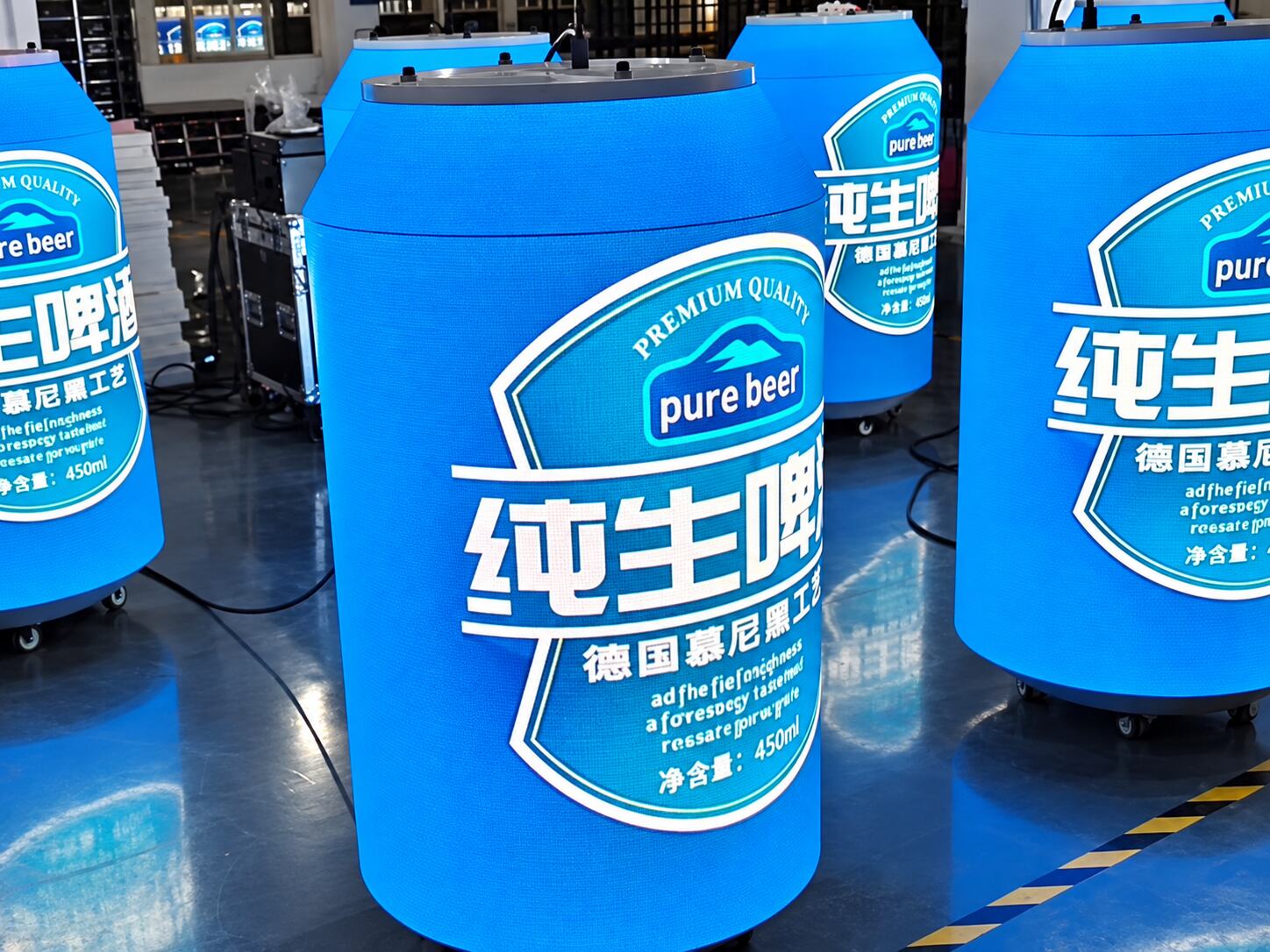
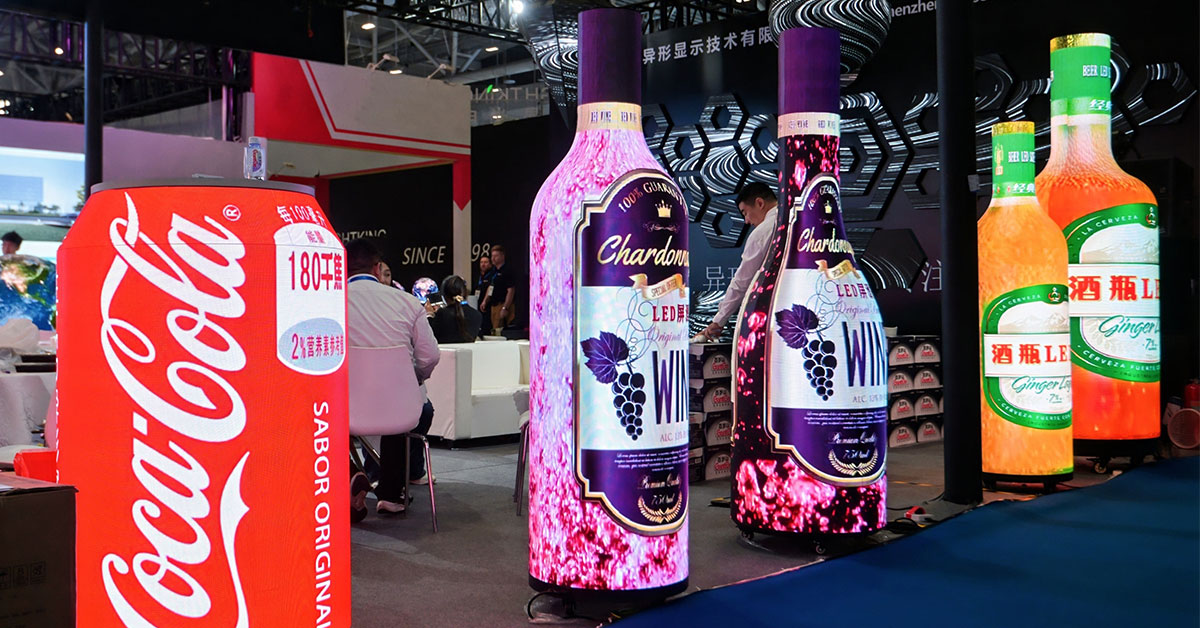
A can-shaped LED display may look good when tested alone. However, the result can change after installation near LCD screens, digital posters, and illuminated signs.
During project handover, installers sometimes find that the LED display looks much brighter than the surrounding screens. White backgrounds appear too strong, while nearby LCD displays seem relatively dark.
This difference becomes more noticeable when several screens show similar advertising content.
For shopping malls, retail stores, and exhibition booths, the goal is not to make every screen as bright as possible. All displays should look comfortable and work together in the same space.
When one screen is much brighter than the others, it can affect the overall presentation.
Visitors may focus only on the can-shaped LED display and overlook information on nearby LCD screens.
Excessive brightness can also make white areas uncomfortable to watch at close distances.
On the other hand, reducing brightness too much may cause the LED display to lose visibility under strong indoor lighting.
For this reason, brightness matching is an important part of final installation and project acceptance.
LED displays and LCD screens use different lighting technologies.
An LED display produces light directly from its LED pixels. An LCD screen uses a backlight behind the panel.
Even when both devices have similar brightness specifications, their images may not look identical.
Several factors influence the result:
Different brightness settings and maximum output levels
Screen size and viewing distance
Ambient lighting and reflections
Video content and background colors
Gamma, contrast, and color temperature settings
The curved surface of a can-shaped LED display adds another challenge.
Different sections face different directions. One side may receive light from a shop window, while another faces a darker interior area.
Therefore, checking only the front of the display is not enough.
The adjustment process should begin after the display has been installed in its final position.
Step 1: Check the surrounding screens
First, identify the nearby LCD screens, lightboxes, and digital signage.
Check their normal operating brightness and viewing distances. These provide useful references for adjustment.
Step 2: Use the same test content
Display white, gray, and colorful images on the LED and LCD screens.
Using similar content makes brightness differences easier to identify.
White images help reveal excessive brightness, while gray images help check whether darker details remain visible.
Step 3: Adjust the LED brightness
Reduce or increase the brightness gradually through the LED control system.
The objective is visual balance, not necessarily identical numerical brightness.
Avoid changing contrast or gamma simply to make the screen appear darker.
Step 4: Check different viewing angles
Walk around the can-shaped display and inspect its curved surface.
Pay attention to areas facing windows, ceiling lights, and darker corners.
Step 5: Confirm normal operating settings
Save the final settings in the control system and check that they remain active after restarting the display.
If scheduled brightness control is used, confirm the settings for different operating periods.
Brightness matching should be verified before the project is handed over.
A luminance meter can measure screen brightness in cd/m², also called nits. Measurements should be taken using consistent test images and suitable viewing positions.
The following checks are useful:
Compare brightness under normal indoor lighting.
Check white and gray images for visible differences.
Confirm that text and logos remain clear.
Inspect the curved surface from several angles.
Restart the equipment and verify saved settings.
The final check should also use actual advertising videos.
A display that looks balanced with a white test image may still appear too strong when playing bright, fast-moving content.
Several parts of the LED system influence the final result.
The LED modules determine the available brightness range, while the receiving cards and control software manage image output.
The video processor can also affect contrast, gamma, and color reproduction.
Power supplies must provide stable power during operation.
For a can-shaped LED display, the cylindrical frame and module alignment are equally important. Poor alignment can create visible differences between sections, especially when viewed from an angle.
If automatic brightness control is required, a suitable ambient light sensor may also be included.
Consider a beverage store using a can-shaped LED display beside two LCD advertising screens.
The can-shaped screen shows rotating product graphics, while the LCD screens display prices and promotional information.
During the final inspection, the LED display appears too bright compared with the LCD screens.
The installer checks the surrounding lighting, plays matching test images, and gradually adjusts the LED brightness.
After adjustment, the can-shaped display remains noticeable without making the nearby LCD screens difficult to view.
This example shows why brightness matching should be completed in the actual installation environment.
TOOSEN provides customized LED display solutions, including can-shaped and other special-shaped LED screens.
For projects involving several display types, brightness settings, control systems, installation structure, and viewing conditions should be considered together.
Clear commissioning records and saved control settings also make future maintenance easier.
Not necessarily. The best setting depends on ambient lighting, screen size, viewing distance, and advertising content.
Yes. Most LED display control systems allow brightness adjustment through software, within the limits of the hardware.
LED and LCD screens have different lighting characteristics. Contrast, image content, reflections, and viewing conditions can affect perceived brightness.
Yes. Final testing in the actual environment helps confirm comfortable viewing and consistent performance with nearby screens.
 +86 18688923792
  andy@tosled.com


